|
MyAssistant send spreadsheets that can require a password in order to be opened, and can require a separate password in order to make changes.
The following outlines the possible steps to add passwords for opening and editing a Spreadsheet Template. Depending on the desired level of security for the spreadsheet(s) sent by the Task, some steps can be skipped. These steps begin in the Email step of Task Setup:
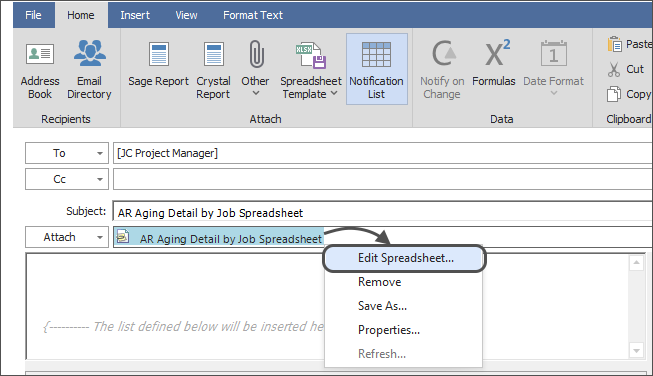
1.Open the Spreadsheet Template: Right-click on the Spreadsheet Template in the "Attachments" section under the Subject line and select "Edit Spreadsheet"
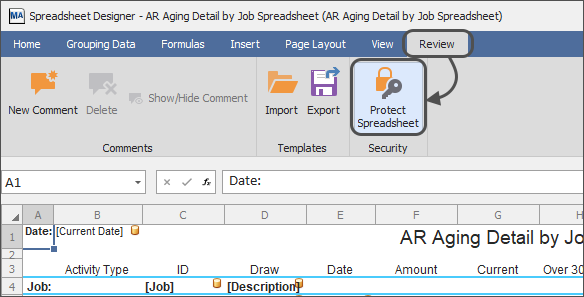
2.Open the Security Settings: Click the "Review" tab of the ribbon in the window that opens, then click "Protect Spreadsheet"
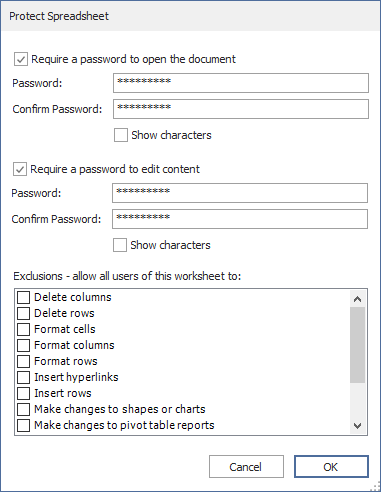
3.Set a password to open the Spreadsheet: Check "Require a password to open the document" and enter a password in the specified fields
4.Set a password to edit the Spreadsheet: Check "Require a password to edit content" and enter a password in the specified fields (this does can be a separate password than the one for opening the spreadsheet)
5.Set any exclusions: Check the box for each activity that can be done without entering the password required to edit content. Options include inserting and deleting columns and rows; and more.
6.Save the Template: Click OK to close the window, then click the "Home" of the ribbon and select "Save and Close" to close the template
Related Links
Send a Spreadsheet Overview
Repeat Section
Sort
Grouping
Document Headers & Footers
Totals
Prebuilt Spreadsheet Templates
Saving Copies of Spreadsheets
Import & Export Spreadsheet Templates
|

