|
This reference section provides detailed explanations on the components of MyAssistant Spreadsheet Templates and the steps for various advanced actions that can be performed (for example: multiple groupings, subtotals & totals, spreadsheet formulas, and more).
Spreadsheet Templates have the following parts:
Spreadsheet Cells: The content of each cell can be a Sage field, MyAssistant Formula or Excel formula. They determine what Sage information is filled in on the spreadsheet.
Repeat Section: Sets what information will be repeated for each record (for example: AP Vendor) found by the Task Condition
Related: Repeat Section
Sort: Controls the order records (for example: Jobs, Vendors, etc.) are listed in the spreadsheet, and also determines what Sage fields you can group by.
Group Headers & Footers: A section that will appear at the top or bottom of a group of information. For example, you can group Cost Codes by Job and have an overline (Group Header) with the Job Name, and then have a section that subtotals amounts by Job (Group Footer).
Document Headers & Footers: Appear once at the beginning or end of the spreadsheet. Document Headers are often used for information like column headings and spreadsheet titles, while Document Footers are used for things like grand totals.
How to add a Spreadsheet Template to a Task
1.Open a prebuilt or create a new Task and advance to the Email step of Task Setup
2.Click the "Spreadsheet Template" button in the ribbon
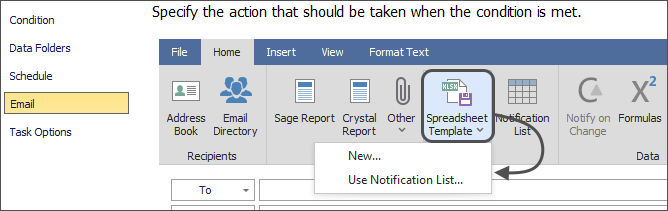
3.Choose how the template should be created:
▪Choose "New" to start with a blank or prebuilt Spreadsheet Template
▪Choose "Use Notification List" to use the list of Notifications at the bottom of the Email step to create a template
How to add a Spreadsheet Template to a Task
1.Open a Task with a template attached and advance to the Email step of Task Setup
2.Right click on the Spreadsheet Template in the "Attachments" section under the Subject line
3.Select "Remove"
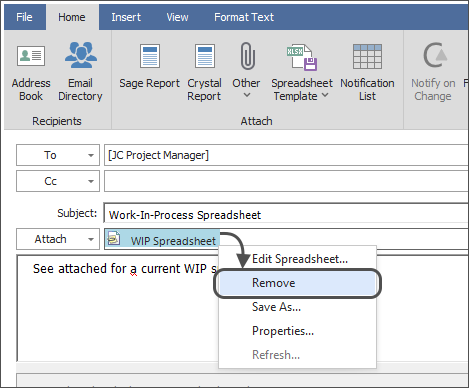
Note: Only one MyAssistant Spreadsheet Template can be attached to a Task at a time. Each recipient on a Task can be sent a spreadsheet with only their information, but every spreadsheet will use the same Spreadsheet Template.
|
Related Links
Send a Spreadsheet Overview
Repeat Section
Sort
Grouping
Document Headers & Footers
Totals
Prebuilt Spreadsheet Templates
Security
Saving Copies of Spreadsheets
Import & Export Spreadsheet Templates
|

