|
MyAssistant features the ability to import and export Spreadsheet Templates from Tasks. Exporting a spreadsheet template can be useful when needing assistance or having a change made by someone outside the office. Importing a Spreadsheet Template allows for quickly updating or setting up a new spreadsheet on a Task.
To Export a Spreadsheet Template:
1.Select the MyAssistant Task with the attached spreadsheet in the main MyAssistant window
2.Click "Open" in the button bar to open the Task
3.Click "Email" on the left side of the window that opens to go to the Email Step
4.Right-click on the Spreadsheet Template in the attachments section and select "Save As..."
.png)
5.Navigate to where the Spreadsheet Template should be saved, then click "Save"
6.Click "OK" to close the Task
To Import a Spreadsheet Template:
1.Select the MyAssistant Task with the attached spreadsheet in the main MyAssistant window
2.Click "Open" in the button bar to open the Task
3.Click "Email" on the left side of the window that opens to go to the Email Step
4.If a Spreadsheet Template is already attached, right-click on the template and select "Edit Spreadsheet".png)
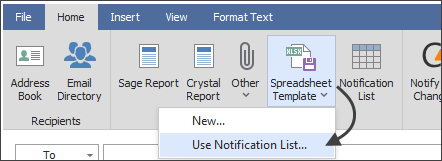
5.If a Spreadsheet Template is not on the Task, click "Spreadsheet Template" in the ribbon and select "Use Notification List"
6.Click the "Review" tab of the ribbon in the window that opens, then click "Import" in the ribbon.png)
7. Navigate to and select the Spreadsheet Template that should be imported, then click "Open"
8.Click the "Home" tab of the ribbon, then click "Save and Close"
Related Links
Send a Spreadsheet Overview
Repeat Section
Sort
Grouping
Document Headers & Footers
Totals
Prebuilt Spreadsheet Templates
Security
Saving Copies of Spreadsheets
|

