|
The Repeat Section of a Spreadsheet Template controls what information is repeated for each Sage record found by the Task Condition. The Repeat Section can be identified by the blue box and the "Detail" label:
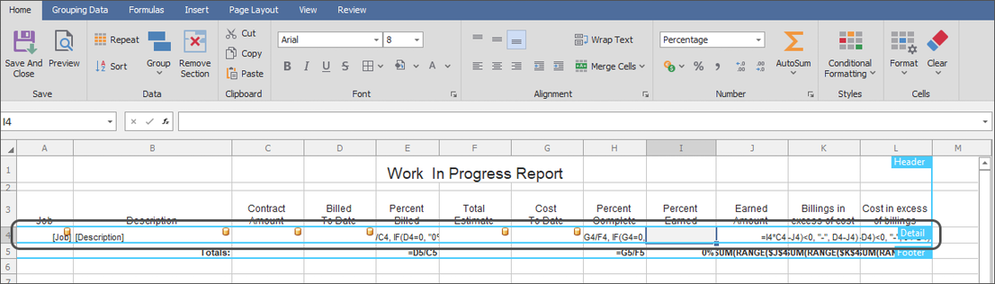
Information must be inside the repeat section to be repeated for every record found by the Task Condition.
|
Tip: Include blank rows in the Repeat Section (above and below the row with Sage information) if information will be grouped in the spreadsheet. Any group headers/footers in the spreadsheet template are added inside the Repeat section
|
To set or change a Repeat Section on a Spreadsheet Template:
1.Open the MyAssistant Task: Select the Task sending a spreadsheet, then click the "Open" button in the ribbon
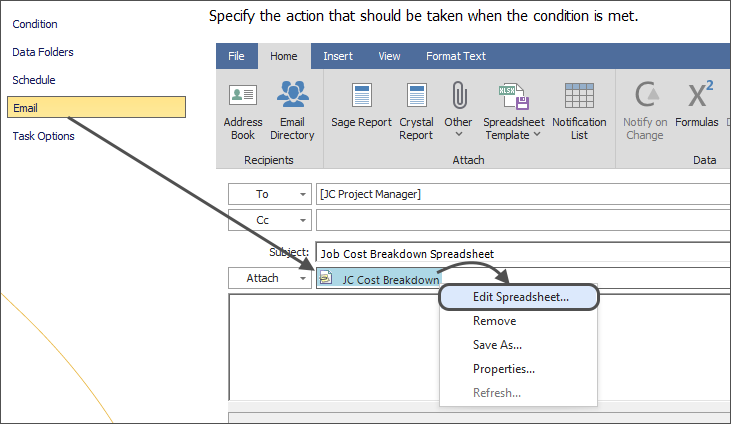
2.Open the Spreadsheet Template: Click "Email" on the left side of the step that opens, then right-click on the spreadsheet template in the "Attachments" section and select "Edit Spreadsheet"
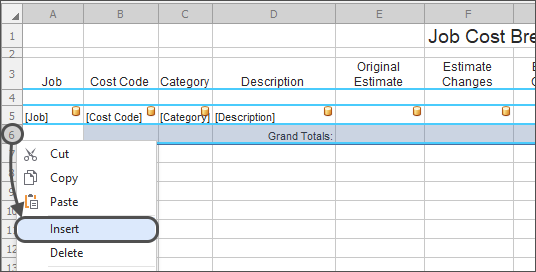
3.Insert row(s) for overline(s): Right-click on the row with the Sage fields and select "Insert" to add an overline that will be used for a group header. Repeat for as many groups with overlines as desired in the spreadsheet.
.png)
4.Insert row(s) for subtotals: Right-click on the row below the row with the Sage fields and select "Insert" to add a row that will be used for subtotals in a group footer
|
Tip: Add two rows to the bottom of a Repeat Section for each Group Footer that will be eventually added. When setting a group footer that will include subtotals, the final spreadsheet will include a blank row that separates the groups and makes it easier to read
|
5.Re-set the Repeat Section: Click and highlight the cells the original and all inserted rows, then click "Repeat" to re-establish the Repeat section.
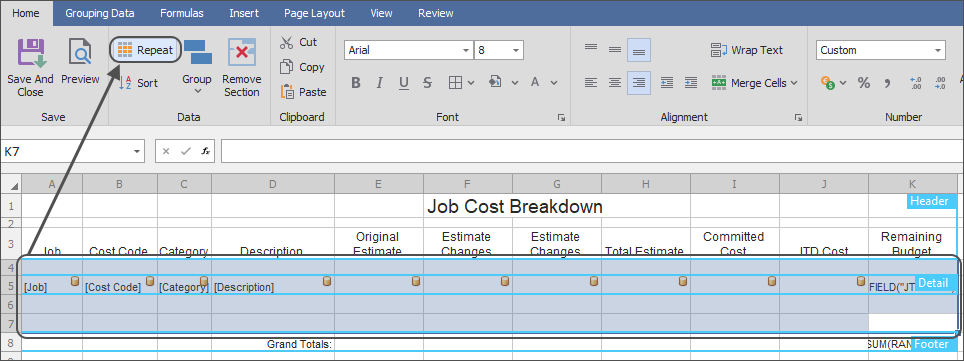
Note: Re-sizing a Repeat Section using the above steps preserves the Sort order of the spreadsheet (if previously set).
|
After the Repeat Section is established, the Sort will set the order information appears in the spreadsheet; as well as what groupings can be set in the spreadsheet template
Related Links
Send a Spreadsheet Overview
What to Send - Send a Spreadsheet
Email a Spreadsheet
Sort
Grouping
Document Headers & Footers
Totals
Import & Export Spreadsheet Templates
|

