|
*ADD LINKS THROUGHOUT HELP TO FORMULAS TOPIC*
Sometimes on a Task you may want to see something like:
▪A sum (for example: the sum of open AP Invoices for a Vendor)
▪Math equations or date math (for example: a Job's remaining budget by subtracting Job-to-Date cost from the Total Estimate)
▪Looking up information not directly related to what is being found by a Task (for example: see the last time a Job was billed by looking at JC Transactions)
▪....and more
These can all be done with what are called MyAssistant Formulas. MyAssistant Formulas are advanced ways to look up, calculate or summarize information in Sage in order to use it in a Task. Formulas can be used in several places throughout Task Setup, including (but not limited to):
▪On a line in a Condition to filter what information is found by Task
▪In the prompt field of an attached report that will change its contents
▪In an email subject line or message body to provide additional information
Using MyAssistant Formulas in Conditions
Using MyAssistant formulas in a Task Condition lets you use filter what's found by a MyAssistant Task in a way you may not have previously known was possible/how to do it. Examples of formulas you can use in a Task Condition include:
▪Sum of open AR Invoices for a Customer
▪Percent a Cost Code is over-budget
▪Last time a Job had overtime
▪Number of different Jobs on a Contract
▪Sum of all cost transactions from this month for a Job
▪Open amount on an AP Invoice
Using a MyAssistant Formula in a Condition criteria lets you use potentially more complex criteria on a single line to find the Sage information you want.
Add a Formula to a Condition
When building a Condition in Task Setup, you can add a Formula to a row by clicking the Sage field or formula on the left side of the row. Next, expand the "Formulas (Built-In)" or "Formulas (Owner)" group (depending on who created the formula) and select the formula to use in the row:
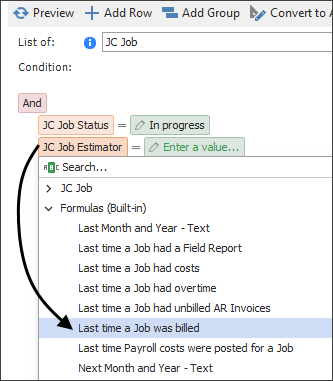
After selecting the formula to use, select the appropriate operand and Sage field or number/text to check against
Creating your own MyAssistant Formula
To create your own formula to use on a Condition, click "Add Formula" in the button bar:
.png)
Select if you want the Formula to give you a number, text or a date; name the formula and create your criteria. When finished, click "Save" and close the window.
|
Important: When you create a MyAssistant Formula, it will be linked to whatever information the Task is looking up. For example: if you create a new Formula on a Task that is sending a list of JC Jobs, the Formula will be linked to the JC Job record in Sage. This means you will only be able to use this Formula on Tasks that can access JC Jobs.
|
Add note about syntax/link to Advanced Conditions
|

