|
The Condition on a Task is the criteria that filter the items you're looking for (for example: PR Checks, JC Jobs, AP Invoices, etc.) to only those you want. A detailed explanation of Conditions can be found here.
This section outlines how to create or update the criteria of a Condition:
Selecting the Sage Field / Formula *ADD LINKS TO FORMULAS TOPIC*
Click the Sage field or formula on the left side of the row to show a list of the Sage information and formulas available to select. Expand the group that matches what you're looking for, then select the field to use in the row:
(1).png)
Click here for a table that helps identify what record information is stored in based on where it's viewed or entered in Sage.
|
Tip: Use the search bar at the top of the Sage field list to quickly find the Sage field to use in the row:
.png)
|
Select the Operand
Click the "=", "begins with", or whatever symbol is between the Sage field or Formula and the space to put the value to check against. The list of available operands will change based on what kind of information is being looked up (i.e. text in a field, a number like a dollar amount, or a date)
.png)
Related: All available operands
Specify the field or Enter a Value
Enter the value or select the Sage field or formula you want to compare against the first Sage field or formula selected.
Click "Enter a value" to type in or select the value to check against the field:
.png)
To select a Sage field or formula: click the pencil icon, click the field & choose the correct Sage field or formula from the list:
.png)
Add a row
Adding rows to a Condition add additional criteria that the information in Sage has to meet to be included in the Task.
To add a row to a Condition, click "Add Row" in the button bar at the top:
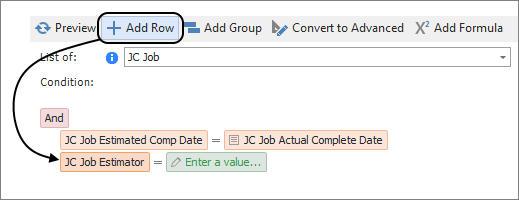
Use the previous steps to modify the newly added row
Delete a row
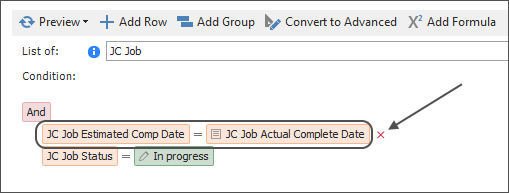
Remove a row from a Condition by hovering on the row, then clicking the "x" that appears to the right:
Add a group
Add groups to combine or change optional and required criteria in a Condition by clicking "Add Group" in the ribbon.
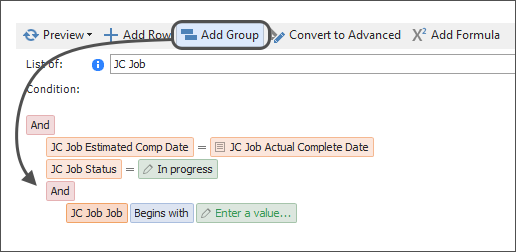
For more information on Groups, click here.
Remove a group
Remove a group from a Condition by hovering on the group heading, then clicking the "x" that appears to the right:
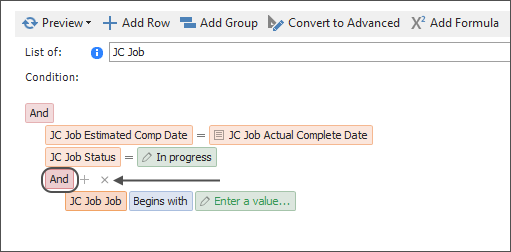
For more information on Groups, click here.
|

