|
Many customers like the ability to send or receive information automatically. With MyAssistant, Tasks can be set up to run and send emails automatically on a Schedule. Every Task has its own Schedule, which controls the days & times a Task runs. Since Tasks run & emails send from the server, many companies schedule Tasks to run outside business hours and on weekends.
Examples include:
▪On the first day of every month at 5am
▪Every other Wednesday at 3pm
▪The last Friday of every month
▪Every weekday at 8am
Tip: Tasks that are set to run on a schedule can still be run manually. For example: A Task scheduled to send an email every Friday is manually run on Tuesday. The Task will run and send an email (if it finds information to send) on Tuesday, then still runs automatically on Friday.
|
How to add a Schedule to a Task
1.Get to the Schedule step of Task Setup.
Note: Schedules can be added while setting up a Task or after it is activated
2.Click the circle next to "On a schedule"
3.Choose when you'd like the Task to run (Daily, Weekly, Monthly, etc.)
4.Choose time & day customizations (which will change depending on what you pick)
5.To add another schedule, click "Add another schedule" and repeat steps 3 & 4
6.Click "Next" to go the Email step of Task Setup or "OK" to close the window (depending on when you're adding the Schedule to the Task).
|
Note: If a Task runs on a schedule but doesn't find anything needs to be sent (For example: nothing matches the Condition criteria, or nothing new needs to be sent out), emails will not be sent.
|
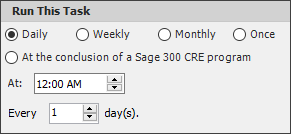
Daily Schedule Customizations
A "Daily" schedule lets you choose:
▪What time the Task runs
▪What days the Task will run (for example: every day, every other day, every 3 days, etc.)
Weekly Schedule Customizations
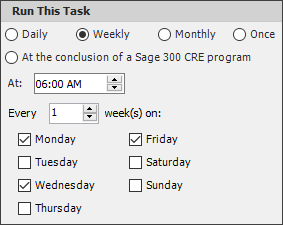
A "Weekly" schedule lets you choose:
▪What time the Task runs
▪What days of the week a Task will run
▪What weeks the Task will run (for example: every week, every other week, etc.)
Monthly Schedule Customizations
A "Monthly" schedule lets you choose:
▪What time the Task runs
▪What day of the month the Task runs:
▪A specific date (for example: the 15th), or
▪A specific day (for example: the last Monday of the month)
▪Which months the Task will run
.png)
At the Conclusion of a Sage Program
ADD EXPLANATION
*SCREENSHOT*
|

