|
A popular use of MyAssistant is automating the generation and sending of reports. Instead of having to manually run a report off a Sage Reports menu, print it and then distribute it to those who need it; a MyAssistant Task can automatically generate the desired report(s) and send them to the necessary recipients. Common examples include automatically generating and sending AR Aging reports, as well as creating and sending Employees their pay stubs every pay period.
While other documents and spreadsheets can be attached to a MyAssistant Task, two different kinds of reports can be attached:
Sage Reports: Reports that have been added to the "Reports" menu in a Sage 300 application, and have been created with Sage 300's Report Designer or Crystal Reports. Almost any report that is on a Sage Reports menu that meets the above criteria can be attached to a MyAssistant Task.
Crystal Reports: Reports created in the Crystal Reports software and designed to report on Sage 300 information can be directly attached to a MyAssistant Task.
To attach a report to a Task
1.Open or create the MyAssistant Task that will have the report attached
2.Progress to the Email step of Task Setup
3.Attach the (first) desired report using the corresponding button
a.If the report is already on a Reports menu in a Sage program, click "Sage Report"
b.If the report was created in Crystal Reports software and is not on a Sage Reports menu, click "Crystal Report"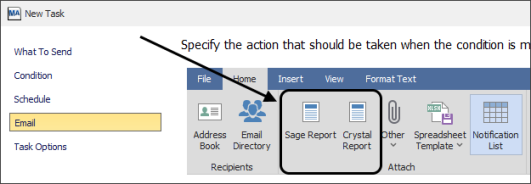
4.Navigate to and select the desired report
a.If "Sage Report" was clicked: a window will open that will list all available reports that can be added from Sage, grouped by application. Expand the groupings or use the search bar at the top to find the desired report and click "OK"
.png)
b.If "Crystal Report" was clicked: a File Explorer window will open -- navigate to and select the Crystal Report that should be attached to the Task, then click "Open"
After selecting which report should be attached to the Task, the Report Options window will open.
|

